Finding the best graphics settings for GTA 6 on PS5 starts with adjusting your expectations a little. Unlike plenty of other action games that offer a 60 FPS performance mode, GTA 6 targets 30 FPS on every current-gen console, including the PS5 Pro, as Rockstar Games has confirmed (Rockstar Newswire, via Game Informer). The game's menu doesn't have a performance mode, a quality mode or a frame rate option either.
That means getting GTA 6 to look its best on PS5 and PS5 Pro comes down to three things: your PS5's video output settings, a proper HDR calibration and a handful of Display options inside the game.
Best Graphics Settings for GTA 6 on PS5 at a Glance
If you just want to jump in, here's the short version. Each setting is explained in more detail below.
Setting | Recommendation | Where to Find It |
|---|---|---|
Resolution | Automatic | PS5 system settings |
HDR | On When Supported | PS5 system settings |
Adjust HDR | Follow the on-screen instructions | PS5 system settings |
120 Hz Output | Automatic | PS5 system settings |
VRR | Automatic; try Off if your screen flickers | PS5 system settings |
ALLM | Automatic | PS5 system settings |
Brightness Calibration | Until the Rockstar logo is just visible | GTA 6 Display menu |
HDR Calibration (Max Brightness, Black Levels, Paper White) | Calibrate with the test images to suit your TV | Pause > Settings > Display |
Motion Blur Strength | 1–2 (default 3) | GTA 6 Display menu |
Brightness Reduction | Optional | GTA 6 Display menu |
GTA 6 PS5 Frame Rate: Can It Run at 60 FPS?
GTA 6 doesn't have a 60 FPS mode on either the PS5 or PS5 Pro. Rockstar says the game was built for current-gen consoles with a 30 FPS target while keeping up the density and visual detail of its environments and the people in them (Rockstar Newswire, via Game Informer). A lot of outlets have pointed to the CPU load of the world simulation as the main reason, but Rockstar itself hasn't named the CPU.
Where the two consoles differ is how well they hold that 30. In Digital Foundry's video analysis, John Linneman describes the PS5 Pro as delivering a "near-flawless" 30 FPS with perfect frame pacing. He says he played more than 50 hours without seeing a single performance dip outside of stress tests. The Pro's lowest point, 24 FPS, only showed up briefly in the heaviest stress test, when Digital Foundry deliberately caused massive destruction, and it recovered quickly.
The standard PS5, according to Linneman, "actually does struggle to hold 30fps more often than expected." In regular play, like driving around the city, the dips are small but still noticeable. In the same stress testing, such as blowing up a row of cars with a grenade launcher, the frame rate stayed below 30 until the player left the area or died, bottoming out around 23 FPS.That 23 FPS figure is a worst case, not what you'll see all the time.
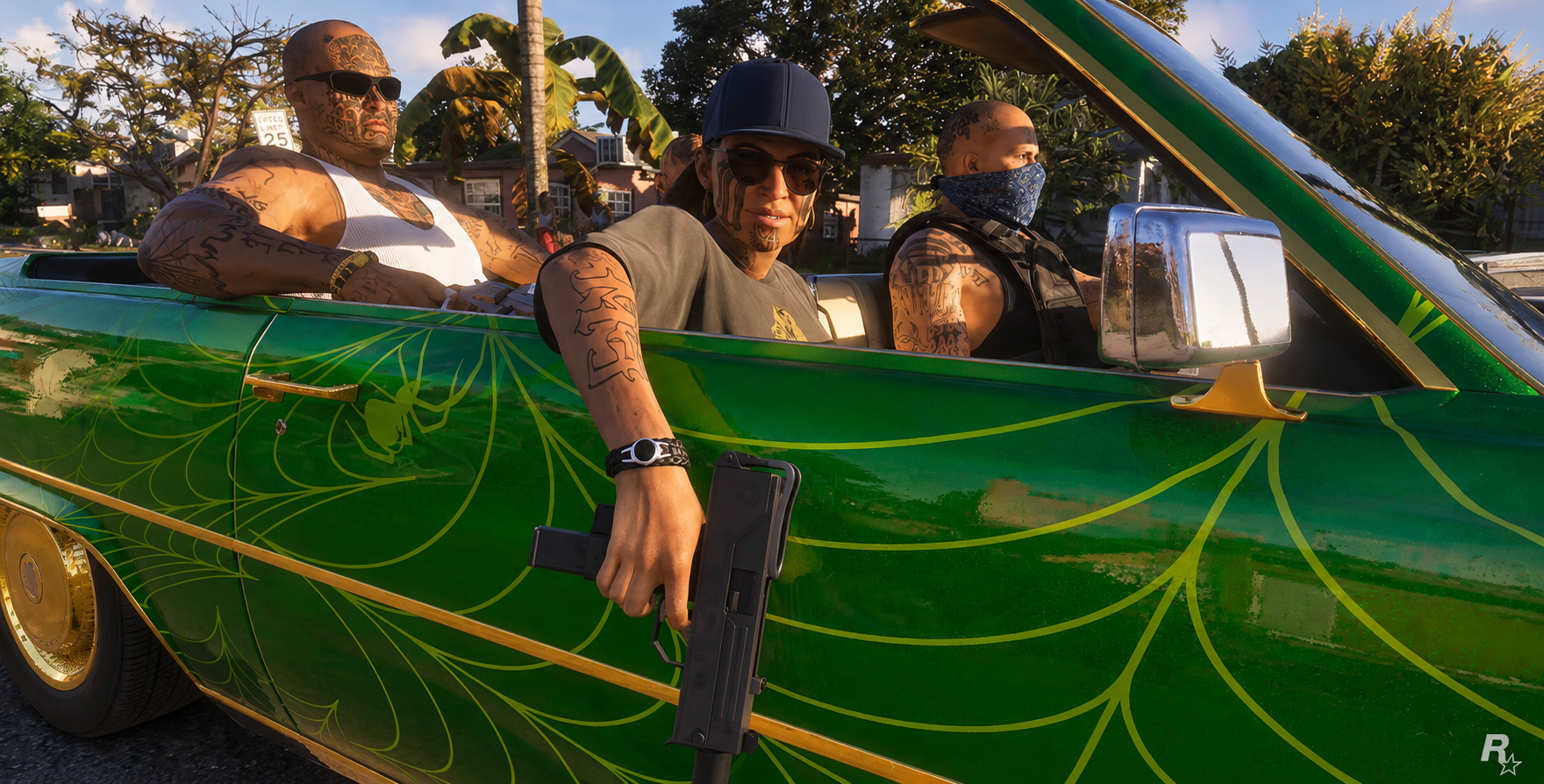
PS5 vs. GTA 6 PS5 Pro Enhancements
Before you change anything, it helps to know what each console can actually do with the game.
Feature | PS5 (Standard / Slim) | PS5 Pro |
|---|---|---|
Target frame rate | 30 FPS | 30 FPS |
Internal resolution | Around 1440p | Around 1440p |
Upscaling | Spatial upscaler | PSSR (PlayStation Spectral Super Resolution) |
Ray-traced global illumination | Yes | Yes |
Ray-traced reflections | Yes | Yes |
Ray-traced shadows | No | Yes |
30 FPS stability | Dips more often in heavy scenes | Almost always stable |
DualSense and Tempest 3D Audio | Yes | Yes |
Sources: PlayStation Blog, Game Informer, GTABoom, TweakTown
Rockstar and Sony have both confirmed that the PS5 Pro gets "improved clarity" through PSSR, plus ray-traced shadows that are exclusive to the Pro.Digital Foundry found that both consoles render at around 1440p. The difference is that PSSR on the Pro gets the image close to 4K, while the standard PS5's spatial upscaler produces a softer picture.
How to Set Up Resolution, HDR and VRR on PS5
You'll find all of these under Settings > Screen and Video > Video Output on your console's home screen.
Resolution: Automatic. Sony says this automatically picks the highest resolution your TV supports.
HDR: On When Supported. With this option, games that support HDR display in HDR, while other games and apps stay in SDR
Adjust HDR. Run this calibration once before you start the game, and follow the instructions on each screen for your TV or monitor. This system calibration is separate from the HDR settings inside GTA 6.
120 Hz Output: Automatic. This turns on 120Hz output for TVs and games that support it. It won't raise GTA 6's frame rate, though. The game still runs at 30 FPS.
VRR: Automatic. VRR on PS5 works within a supported refresh rate range, which on compatible displays usually starts at around 48Hz. Since GTA 6 targets 30 FPS, the benefit is likely limited. Leave it on Automatic, and only turn it off if your OLED flickers or you run into other display issues.
ALLM: Automatic. If your TV supports it, ALLM automatically switches your TV to its low-latency mode while you play
Related Article: Hidden Details in the GTA 6 Launch Trailer You Might Have Missed
GTA 6 HDR and Display Settings In-Game
When you first boot up the game, head to the Display and HDR options. There aren't as many choices as you'd get on PC. There's no Film Grain, Chromatic Aberration, Depth of Field or field of view setting.
HDR and Brightness Calibration
The order matters here, so the two calibrations don't work against each other. Start with Adjust HDR in your PS5's system settings as covered above, then move on to the in-game calibration.
In the game, hit Pause and go to Settings > Display > HDR Calibration. You'll find three sliders there: Max Brightness, Black Levels and Paper White. Recorded values of 600, 50 and 50 on that screen, but those are just the starting numbers it saw, not recommendations for every TV. The right values depend on your TV or monitor, so follow the test images on screen. For Max Brightness, for example, the game asks you to adjust it until bright areas look vivid without losing detail. Also in the Display menu is Brightness Calibration. Raise or lower it until the Rockstar logo on the test screen is just visible
Motion Blur Strength
Motion blur in GTA 6 is a slider with a default of 3. If you want a sharper image, drop it to 1 or 2. Don't go straight to 0 if camera turns start to feel choppy, because at 30 FPS a bit of blur actually helps motion look smoother. Going down to 1 or 2 is a matter of taste, not a way to improve performance. If you prefer smoother camera movement, staying on the default 3 is fine too.
Other Options Worth Checking
Brightness Reduction tones down bright lights in the game world without dimming the HUD. Try turning it on if explosions or neon lights feel too harsh.
Safe Zone lets you adjust the HUD's position if your TV cuts off the edges of the screen.
High Contrast Shaders give characters, items and interactive objects a high-contrast color. It's useful if you often have trouble spotting enemies or items.
TV Settings for GTA 6
Even with the best graphics settings for GTA 6 on PS5 dialed in, your TV can still work against you. Make sure it's in Game Mode, or let ALLM handle that for you. Turn off motion smoothing too, since on a 30 FPS game it makes the picture look like it's leaving trails when the camera moves.