Ever lost an edit fight or a wall replace even though you were sure you hit the key first? If you're wondering how to reduce input delay in Fortnite on PC, the problem isn't always your internet connection. According to NVIDIA's latency guide, the delay between a mouse click and what appears on screen can come from three places: your input device, your PC, and your monitor.
This guide covers how to reduce input delay in Fortnite on PC from all three sides, starting with the in-game settings and working down to your mouse and keyboard.
The short version: turn on NVIDIA Reflex if your GPU supports it, test Fullscreen mode, set V-Sync and your FPS cap to match your monitor, and switch to Performance mode if your PC can't hold a stable frame rate. Then check your mouse polling rate, your monitor's refresh rate and whatever's running in the background. Change one setting at a time so you can tell what actually makes the game feel more responsive.
Input Delay, Ping or Stutter? Know What You're Fixing
These three problems can feel alike in the middle of a match, but they have different causes and different fixes.
Input delay is the gap between pressing a key or clicking your mouse and seeing the result on screen. That's what this guide is about.
Ping is how long data takes to travel between your PC and Fortnite's servers and back. Graphics settings won't fix high ping. The fix is on the connection side, like switching to a wired Ethernet connection or picking a closer server region.
Stutter is a brief hitch caused by uneven frame times. Your average FPS can look great and the game can still feel choppy.
In-Game Settings and NVIDIA Reflex
Start with Fortnite's Video settings. A few changes here can stop your CPU from queuing up frames faster than your GPU can render them.
NVIDIA Reflex works by making sure the CPU sends work to the GPU just in time for it to be rendered. In NVIDIA's June 2025 testing, Reflex cut PC latency in Fortnite Battle Royale by up to 54% on GeForce RTX 50 Series GPUs. That number comes from NVIDIA's own hardware setup, so the drop on your PC could be smaller or bigger.
Reflex only works on NVIDIA graphics cards, from the GTX 900 series onward. If you're on an AMD or Intel GPU, you won't be able to turn it on.
Setting | Recommendation | Why |
|---|---|---|
Window Mode | Fullscreen | Starting point for low latency |
V-Sync | Off (unless you use G-SYNC/FreeSync) | Avoids an extra frame queue |
Frame Rate Limit | Start at Unlimited | Baseline for testing latency |
NVIDIA Reflex Low Latency | On, or On + Boost | Cuts down the render queue |
Rendering Mode | Performance (for mid-range and older PCs) | Lighter load on CPU and GPU |
Window Mode
Start with Fullscreen. NVIDIA recommends exclusive fullscreen because it can bypass the Windows compositor, and it still recommends it even though borderless latency has improved slightly. Windows 11 also has a feature called Optimizations for windowed games, which moves DirectX 10 and DirectX 11 games running in windowed or borderless mode to a newer presentation model to reduce frame latency. If you'd rather play in Windowed Fullscreen because you switch apps a lot, turn this on under Settings > System > Display > Graphics and compare the results yourself.
V-Sync
Turn V-Sync off if you can live with screen tearing (the torn lines you see when the camera moves fast). G-SYNC monitors are a different story. There, NVIDIA actually recommends leaving V-Sync on alongside Reflex to keep the screen from tearing.
Frame Rate Limit
No single FPS cap works for every PC. To test how low your latency can go, start with Frame Rate Limit set to Unlimited and Reflex turned on. NVIDIA says running uncapped with Reflex gives slightly lower latency than using a frame cap.
If your FPS swings wildly, try capping it at a number your PC can hold consistently, even in a crowded endgame. If you use G-SYNC, first make sure it's enabled for the display mode you play in, whether that's fullscreen or windowed. According to NVIDIA, G-SYNC, V-Sync and Reflex together can keep your FPS just below your monitor's refresh rate on supported setups. Since the outcome depends on your configuration, check both the NVIDIA Control Panel and the in-game settings, then compare.
NVIDIA Reflex Low Latency
Go to Settings > Video > Advanced Graphics and find NVIDIA Reflex Low Latency. Pick On, or On + Boost if your PC is often CPU-bound (your FPS is held back by the processor, not the graphics card). Boost raises GPU clock speeds in those situations. Check your FPS before and after, then keep whichever feels more stable.
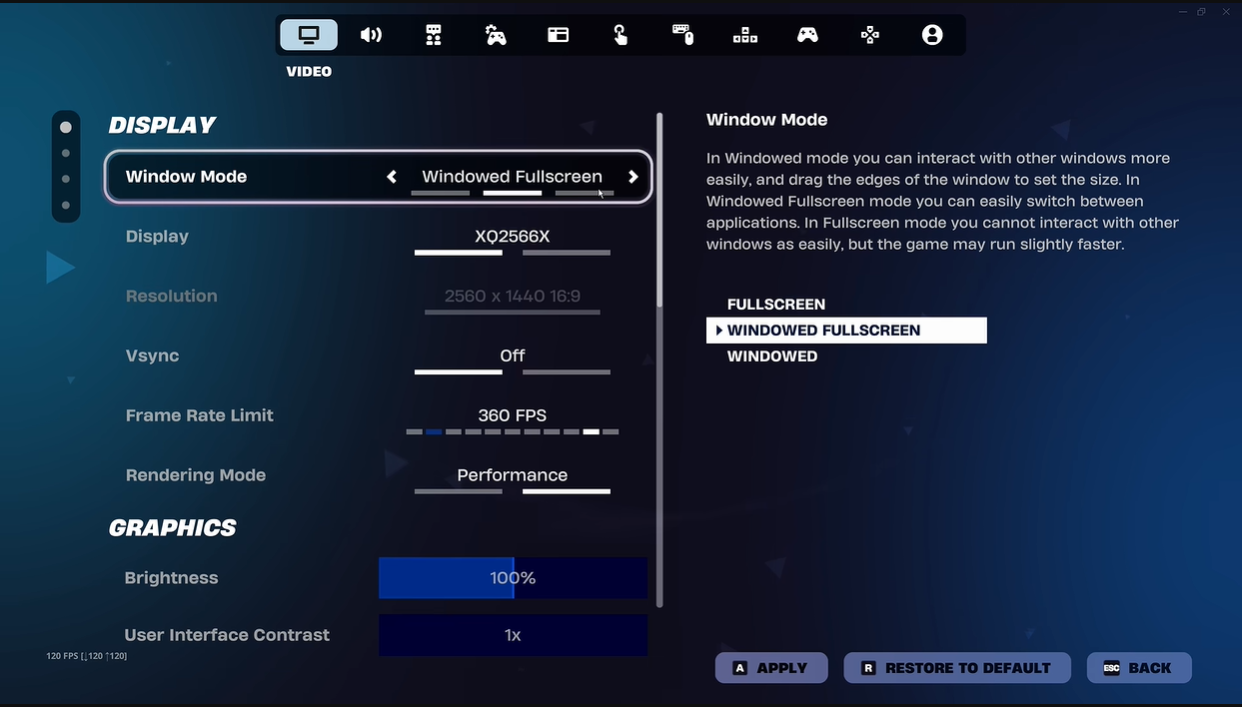
Fortnite Performance Mode Settings
When the graphics load is too heavy, every frame takes longer to process. According to Epic Games Store's competitive settings article for 2026, Performance mode strips out nonessential rendering features, which lowers memory use and lightens the load on your CPU and GPU. You'll notice it most on mid-range and older PCs.
Here's how to turn it on, following Epic's guide:
Launch Fortnite.
Click the player icon, then select Settings (the gear icon).
Open the Video tab (the monitor icon).
Under Display, find Rendering Mode.
Click the arrows and choose Performance.
Click Apply, then restart Fortnite.
Once you're on Performance mode, you can also remove the high-resolution textures in the Epic Games Launcher (Library > the three dots next to Fortnite > Options, then uncheck High Resolution Textures). This won't reduce input delay, but Epic says it frees up more than 15 GB of storage. Just keep in mind you'll need to download them again if you switch back to DirectX 11 or 12.
How to Reduce Mouse and Keyboard Input Lag
This part gets skipped a lot, even though your mouse and keyboard are the first link in the whole latency chain.
Polling rate. NVIDIA recommends setting your mouse polling rate to 1000Hz. Compared with 125Hz, 1000Hz cuts up to 3 milliseconds of latency on average. Going higher than that isn't automatically better, since results vary with your hardware and setup. If things feel off after raising it, bring it back down.
DPI isn't a latency setting. DPI controls how far your cursor or aim moves relative to how far you move the mouse. Raising it isn't a reliable way to cut input delay, and NVIDIA's guide notes that higher DPI doesn't mean lower latency. Stick with a DPI and in-game sensitivity combo that feels comfortable, and judge your mouse's response with the same settings each time.
Connection and wireless. Plug your mouse or wireless receiver straight into a USB port on your PC, not a hub or the ports on your monitor. If you use a wireless mouse, keep the receiver as close as you can and don't let the battery run low.
Peripheral software. Apps like iCUE and other mouse and keyboard utilities keep running in the system tray. Try closing them and see if the game feels more responsive.
Check your keyboard too. Make sure the USB or wireless connection is stable, and keep the battery charged if it's wireless. Turn off macros or extra software you don't use. If your keyboard lets you change its polling rate, test a few options without assuming the highest number is always best.
Check your monitor's refresh rate as well. Make sure it's actually running at its highest setting, since a higher refresh rate also lowers latency on the display side. You'll find it under Settings > System > Display > Advanced display. A 144Hz monitor still running at 60Hz is more common than you'd think.
Read Also: How Esports Streaming Rights Are Challenging Exclusive Broadcasting
Windows 11 Gaming Optimization
Once your in-game settings are sorted, look at the Windows side. Background processes can eat into resources Fortnite should be using.
Turn on Game Mode. Go to Settings > Gaming > Game Mode and make sure it's on. According to Microsoft, Game Mode stops Windows Update from installing drivers and sending restart notifications while you play, and helps achieve a more stable frame rate depending on the game and system. NVIDIA also recommends keeping Game Mode on.
Test with Xbox Game Bar off. Epic's Fortnite FPS troubleshooting guide suggests turning it off alongside enabling Game Mode. If you don't use its recording or overlay features, disable it under Settings > Gaming > Xbox Game Bar and compare how Fortnite runs.
Try HAGS. Hardware-Accelerated GPU Scheduling moves part of the graphics task scheduling from the CPU to the GPU. Epic also recommends turning it on under Settings > System > Display > Graphics if the option is available. Keep in mind that Epic lists it as a step for improving FPS, not as a guaranteed fix for input delay. Play with HAGS on and off, then stick with whichever gives you the more stable result.
Make sure Fortnite runs on your main GPU. This matters most on laptops with two graphics chips. On the same Graphics page, add FortniteClient-Win64-Shipping.exe under Custom options for apps and set it to High performance.
Use the High performance power plan. Search for "Power" in Windows, open Additional power settings, then choose High performance or Best performance, depending on your device.
Close overlays and background apps you don't need while playing.
Still Feeling Delay? Check by Symptom
If you've tried everything above and the game still feels heavy, start with the symptom that's closest to what you're seeing.
Symptom | Check First |
|---|---|
Edits or builds feel slow, but FPS is stable | Reflex, mouse polling rate, monitor refresh rate |
Your character teleports or builds register late | Ping, packet loss, server region |
FPS tanks in the endgame | Performance mode, CPU/GPU load, frame time consistency |
Delay only shows up with a wireless mouse | Receiver placement, battery, signal interference |
The game feels less responsive after a driver update | Compare settings and performance before and after the update |
Teleporting or late builds often come down to high ping, packet loss or server issues. Before you touch your graphics settings, check your network stats under Settings > Game UI > Net Debug Stats.
How to Check Your Results
Don't rely on feel alone. High FPS doesn't automatically mean lower input delay, either. The simplest approach is to compare numbers before and after each change. Games that support Reflex can show latency stats, including game latency and render latency, and NVIDIA's overlay can display rendering latency too. Also watch whether your FPS holds steady in the endgame, since that's usually where stutter shows up.
FPS and render latency still don't tell the whole story. FPS counts frames, not delay, and render latency only covers part of the PC side. Neither measures the full time from pressing a mouse button or key to seeing the result on your monitor, which also includes your peripherals and display. To measure the full path from mouse click to screen, you need a tool like Reflex Analyzer, which is built into certain G-SYNC esports monitors.
Change one setting at a time, then play a few rounds. That's how you'll find out which settings actually help when you reduce input delay in Fortnite on PC, and which ones make no difference on your setup.