Learning how to get 240 FPS in Roblox without FPS unlocker apps takes about a minute: press Esc, open Settings, find Maximum Frame Rate and pick 240. Roblox has offered this setting to Windows players since May 30, 2024, with options for 60 (the default), 120, 144 and 240 FPS. You don't need to install third-party software just to get past the 60 FPS cap anymore.
There's one thing to understand up front, though. Picking 240 in the menu doesn't automatically make Roblox run at 240 FPS. We'll explain why below, along with what to check if your FPS is still stuck at 60.
Why Players Are Moving Away From Roblox FPS Unlockers
Before the official setting existed, PC players usually got past the 60 FPS cap in one of two ways: an FPS unlocker app that modified the Roblox client, or FastFlags tweaked through a launcher like Bloxstrap.
That approach is now a lot more restricted. Since September 30, 2025, Roblox has limited which FastFlags can be applied through the client. Bloxstrap has since removed its Framerate limit preset and tells users to use the in-game setting instead.
The ban question is less clear-cut than people often make it sound. A Roblox staff member once stated on the Developer Forum that using an FPS unlocker isn't a bannable offense, so using one doesn't automatically mean you're breaking the rules. That statement isn't a permanent guarantee, though, since Roblox's policies and security systems can change. These apps can also stop working every time Roblox updates its client, and downloading them from unofficial sources carries its own security risk. If you still want to use one, check Roblox's current rules first.
With the built-in setting available, there's hardly any reason left to take that risk.
Read Also: Best CS2 Launch Options and Autoexec Setup Guide
How to Use the Roblox Maximum Frame Rate Setting
Join any Roblox experience on a Windows PC.
Press Esc, then open the Settings tab.
Find Maximum Frame Rate and click the arrows to choose 120, 144 or 240.
Head back into the game.
If you're not sure which option to pick, use this table as a starting point.
Monitor Refresh Rate | Starting Maximum Frame Rate |
|---|---|
60Hz | 60 (default) |
120Hz | 120 |
144Hz | 144 |
165Hz | 144 or 240 |
240Hz and up | 240 |
It's only a starting point. Your FPS cap doesn't have to match your monitor's refresh rate, so if you have a 165Hz monitor, for example, you can still try 240 and see which one feels better.
If your PC struggles to hit the number you picked, there's an extra step you can try: set Graphics Mode to Manual and lower Graphics Quality. This is optional. Lowering Graphics Quality can help your PC produce more frames, but it's the Maximum Frame Rate setting that raises the 60 FPS cap.
FPS Cap vs. Actual FPS
A lot of players assume that once they pick 240, the game will run at 240 FPS. That's not how it works. There are three different numbers at play here:
FPS cap is the maximum frame rate the game allows. This is what you change with Maximum Frame Rate.
Actual FPS is the number of frames your CPU and GPU can really produce. If your PC can only manage 110 FPS in a certain experience, setting the cap to 240 won't change that.
Monitor refresh rate is how many times per second your screen updates the image, measured in Hz.
A 144Hz monitor won't stop Roblox from producing 240 FPS, but it can't show 240 full images every second. That's why the table above uses your monitor's refresh rate as a starting point.
Performance also varies a lot from one device to another, even in the same Roblox experience. A game with a huge map and lots of players will naturally be heavier than a simple obby.
How to Fix Roblox When It's Stuck at 60 FPS
If your FPS is still capped at 60 after changing the setting, there are several possible causes. Work through them one at a time.
Check Your Monitor's Refresh Rate
A 144Hz or 240Hz monitor isn't always running at its highest refresh rate. Go to Settings > System > Display > Advanced display and make sure Choose a refresh rate is set to the highest number. On the same page, laptops with 120Hz-plus screens may have a Dynamic refresh rate (DRR) option. Microsoft itself recommends turning it off if a game seems to run at a lower refresh rate while DRR is on.
Check for FPS Limits on Your Laptop and GPU Driver
On some NVIDIA gaming laptops, WhisperMode can limit your frame rate to keep the fans quieter and cut power use. According to NVIDIA, it targets 60 FPS for competitive games and 40 FPS for more demanding ones, and you can change those numbers. If Roblox seems stuck at a specific number, check whether WhisperMode is on and turn it off for testing.
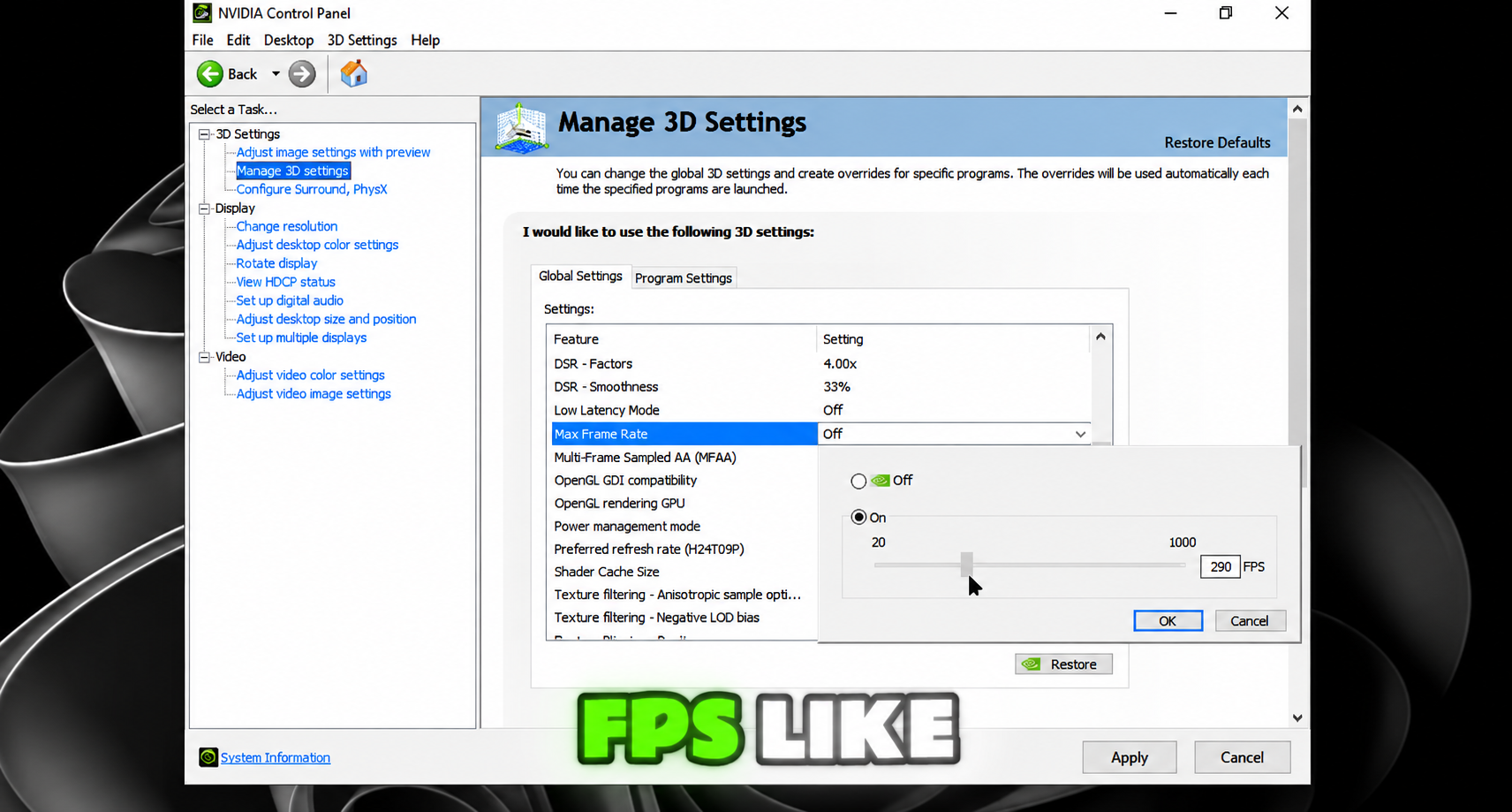
Check the V-Sync and frame rate limit settings in your graphics card software too. If V-Sync or a frame rate limiter is active in your GPU driver, Roblox's FPS can get held at a certain number even with Maximum Frame Rate set to 240.
It Could Be a Client Bug
Not every problem comes from your PC. On the Developer Forum, players have reported Roblox gradually dropping back to 60 FPS even after raising the frame rate cap. If all your settings look right, try leaving the game, opening it again and checking whether the problem comes back.
Watch Your FPS in Real Time
Press Shift + F5 in-game to bring up Roblox's debug stats, which include your FPS. From there, you can see whether you've broken past 60 and how steady the number stays while you play.
Roblox's built-in setting lets you aim for 240 FPS without installing an FPS unlocker. Whether you actually reach that number depends on your hardware and the Roblox experience you're playing.